
Introduction
Learning how to copy and paste on Chromebook is one of the first essential skills for anyone using Chrome OS, whether you are a student, professional, content creator, or casual user. While copying and pasting may seem like a basic task, Chromebooks handle it slightly differently compared to Windows PCs or Macs, thanks to their lightweight operating system and unique keyboard layout. Mastering these methods not only saves time but also boosts productivity, helping you work smarter instead of harder.
Thank you for reading this post, don’t forget to subscribe!In this comprehensive guide, we will explore everything you need to know about copying and pasting on a Chromebook. From the most common keyboard shortcuts to advanced editing techniques, from using the trackpad and touchscreen gestures to managing clipboard history, this guide covers it all. You’ll learn how to move text, images, and files effortlessly across apps like Google Docs, Google Sheets, Gmail, and even web-based tools, making your digital workflow seamless.
Whether you are taking notes for a school project, drafting professional emails, preparing reports, or organizing files in Google Drive, understanding these methods is crucial. Many users struggle initially with Chromebook copy-paste shortcuts because of the Search key replacing the traditional Windows key, or they may not be familiar with gesture-based commands on touchscreens or trackpads. This guide ensures that no matter your level of experience, you’ll have the tools to navigate Chrome OS efficiently.
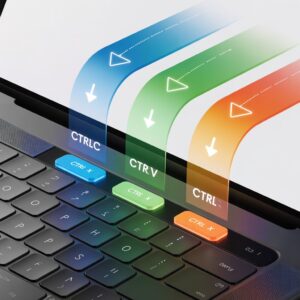
Additionally, we’ll address common issues like the dreaded “copy paste not working” error, and provide troubleshooting tips to quickly overcome these obstacles. You’ll also discover advanced tips such as clipboard history management, bulk file copying, and specialized editing shortcuts that can dramatically improve your speed and efficiency.
By the end of this guide, you’ll not only know how to copy and paste on Chromebook, but you’ll also be confident in using your device to its full potential. From beginner-friendly tips to advanced techniques, every user can benefit from this complete Chromebook copy-paste tutorial. Whether you are at home, in the office, or on the go, these strategies will make your daily tasks faster, easier, and more productive.
Get ready to transform the way you work on your Chromebook. Let’s dive in and explore all the shortcuts, tricks, and tips that will make copying and pasting second nature!
Understanding How To Copy and Paste on Chromebook
Copying and pasting on a Chromebook works similarly to other computers but with some key differences:
-
Chromebook keyboards have a Search key instead of a Windows key.
-
Clipboard management is optimized for Chrome OS.
-
Touchscreens and trackpads allow gesture-based copying.
Why it matters: Efficient copy-paste reduces repetitive work, especially when taking notes, drafting documents, or managing files.
Keyboard Shortcuts for Copying and Pasting
Keyboard shortcuts are the fastest method on a Chromebook:
| Action | Shortcut | Description |
|---|---|---|
| Copy | Ctrl + C | Copies selected text, images, or files |
| Cut | Ctrl + X | Cuts and copies selected content |
| Paste | Ctrl + V | Pastes clipboard content |
| Paste without formatting | Ctrl + Shift + V | Inserts text without styles |
| Undo | Ctrl + Z | Reverts last action |
| Select All | Ctrl + A | Highlights all content |
Pro Tip: Practice selecting text using Shift + arrow keys or double-click/triple-click for efficiency.
How To Copy and Paste On Chromebook Using Trackpad and Mouse
-
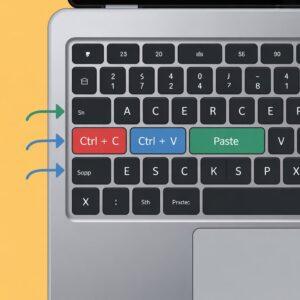
Two-finger tap: Acts as right-click
-
Copy: Highlight content → two-finger tap → Copy
-
Paste: Two-finger tap at destination → Paste
-
External mouse: Works the same, often smoother for desktop setups
Touchscreen How To Copy and Paste On Chromebooks
For tablet-style Chromebooks:
-
Double-tap to select text.
-
Drag handles to adjust selection.
-
Tap the selection → Copy.
-
Tap and hold at paste spot → Paste.
Copying and Pasting Images
-
Select an image in Chrome or Files.
-
Right-click (two-finger tap) → Copy image.
-
Paste in Docs, Slides, or Paint using Ctrl + V.
Tip: Protected images may require “Save image as” before pasting.
Clipboard History on Chromebook
Chrome OS keeps a 10-item clipboard history:
-
Press Search + V to access.
-
Pin frequently used items.
-
Ideal for multitasking or transferring data across multiple apps.
Copying and Pasting Files
-
Select multiple files with Ctrl + Click → Ctrl + C → Navigate → Ctrl + V
-
Drag-and-drop works for quick moves
-
Cut (Ctrl + X) prevents duplicates
Troubleshooting How To Copy and Paste On Chromebooks
-
Shortcut conflicts: Check Settings → Device → Keyboard → Shortcuts
-
App issues: Use Ctrl + Shift + V for plain text; clear cache
-
Clipboard glitches: Restart Chromebook or update Chrome OS
-
Hardware issues: Check trackpad or external keyboard compatibility
Resources: Google Chromebook Support
Chromebook Editing Shortcuts
| Shortcut | Use |
|---|---|
| Ctrl + B | Bold text |
| Ctrl + K | Add link |
| Ctrl + Shift + Arrow | Select words faster |
| Alt + Drag | Column selection in sheets |
| Ctrl + Shift + V | Paste plain text |
FAQs
1. What is the easiest copy-paste shortcut?
Use Ctrl + C to copy and Ctrl + V to paste — universal across all Chromebook apps.
2. How to fix copy-paste not working in Google Docs?
Clear cache or try Ctrl + Shift + V for plain text paste. Restarting the app often resolves the issue.
3. Can images be copied directly from websites?
Yes, right-click → Copy image, then paste with Ctrl + V. Protected images require “Save as” first.
4. How does clipboard history work?
Press Search + V to view and select from up to 10 recent copied items.
5. Are there special shortcuts for formatting?
Yes, e.g., Ctrl + B for bold, Ctrl + I for italics, Ctrl + K for links.
Conclusion
Mastering how to copy and paste on Chromebook is more than just learning a few keyboard shortcuts—it’s about unlocking the full potential of Chrome OS and streamlining your daily workflow. From beginners who are just transitioning from Windows or Mac, to power users managing multiple apps, tabs, and files, these skills save valuable time and reduce frustration.
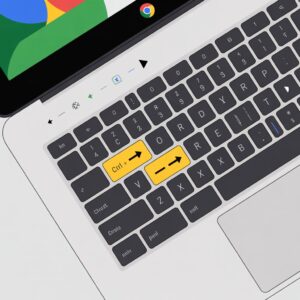
By using the keyboard shortcuts like Ctrl + C, Ctrl + V, and Ctrl + Shift + V, you can quickly move text, images, and even entire files between applications. Pairing this with trackpad gestures or touchscreen commands gives you the flexibility to work efficiently in any environment—whether at a desk, on a couch, or while traveling. Additionally, learning to use the clipboard history and advanced editing shortcuts elevates your productivity by allowing multiple items to be copied and accessed instantly without repeated steps.
How to copy and paste on chromebook is often underestimated, but in reality, it’s a cornerstone of digital efficiency. Think about it: pulling research from multiple browser tabs into a Google Doc, creating presentations with images from various sources, or quickly organizing files in Google Drive—all become seamless once you master these techniques. Even common troubleshooting issues, such as shortcuts not working or paste failures, are easy to overcome with the tips and fixes provided in this guide, ensuring that your workflow remains uninterrupted.
Moreover, these skills are not limited to personal use. Students, professionals, content creators, and educators can all benefit from understanding these methods, allowing them to focus more on creating and less on repetitive manual tasks. By integrating keyboard shortcuts, trackpad gestures, touchscreen tips, and clipboard management into your routine, you are essentially investing in a smoother, faster, and more productive computing experience.
Finally, practicing these techniques regularly will transform them from simple commands into instinctive actions, making your interactions with a Chromebook faster and more intuitive than ever. Bookmark this guide, revisit it as needed, and continue exploring other productivity hacks to complement your new skills. With consistent use, you’ll not only become proficient at copying and pasting but also gain confidence in navigating Chrome OS efficiently, making every task—from note-taking to file management—quicker and more enjoyable.
Your Chromebook experience doesn’t have to be limited by unfamiliarity or minor technical frustrations. Start implementing these tips today, experiment with different methods, and see how much smoother your workflow can become. Productivity, speed, and efficiency are just a few keystrokes away!